Product updates / October 2026OCT / 2026

Good connections. New possibilities.

The CustomerEagle partner program is here. Introduce your audience or clients to the platform, follow your referrals and earn commission through your own partner workspace.

New / Partner program

One customer. Three teams.

CustomerEagle now brings support conversations, sales opportunities and marketing campaigns together in one connected platform.

01 / 03
Support

Resolve the moment.

Keep conversations, Eagle AI assistance and phone support close to the work your team does every day.

  • Shared inbox and AI
  • Voice and follow-up tasks
Support: Current demo workspace · fictional data
Current demo workspace · fictional data
02 / 03
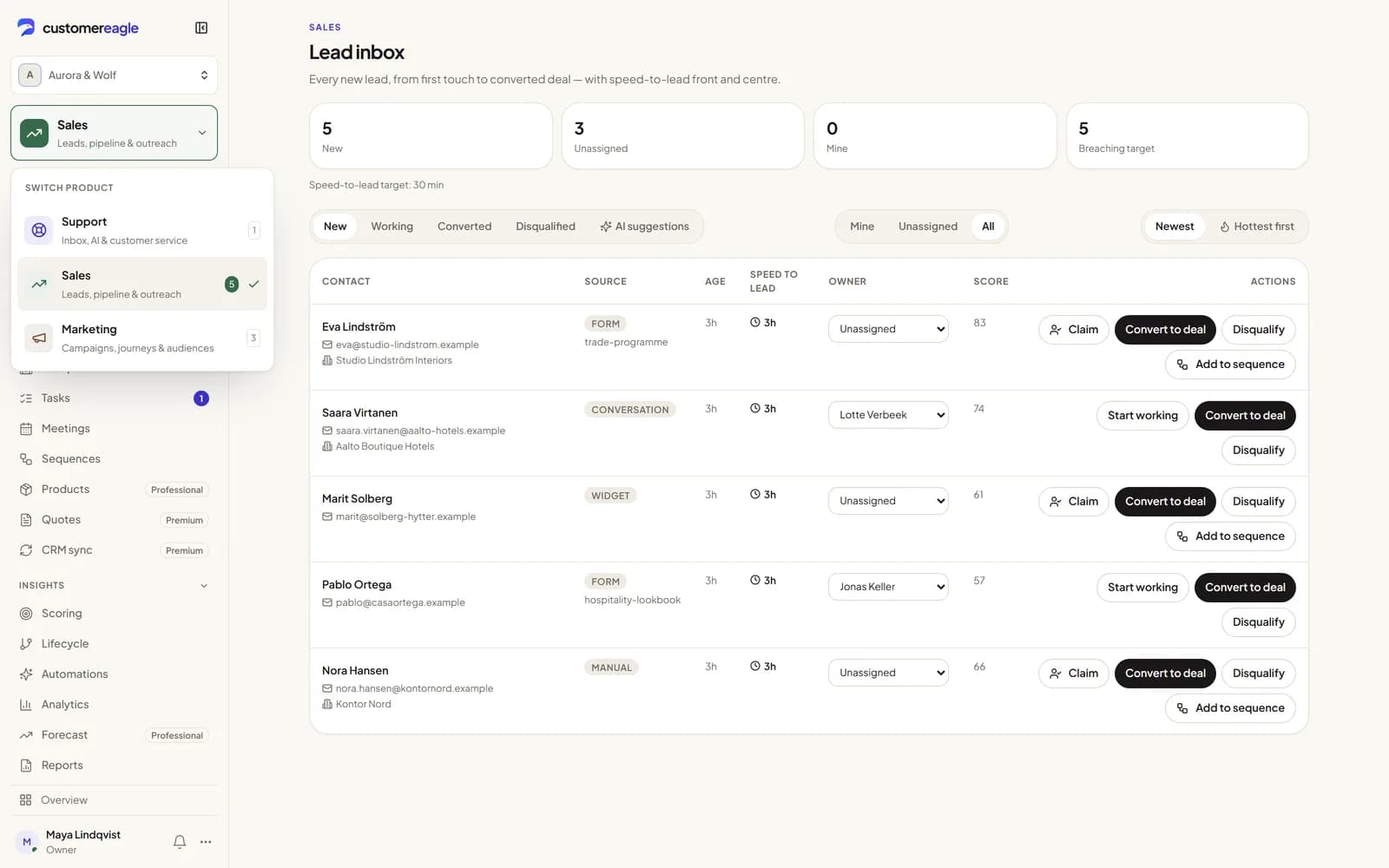
Sales

Move the opportunity.

Give new leads a place to land, then work deals and the next conversation from one sales workspace.

  • Lead inbox and pipeline
  • Meetings and sequences
Sales: Current demo workspace · fictional data
Current demo workspace · fictional data
03 / 03
Marketing

Make the next connection.

Build audiences and campaigns with the customer context already in CustomerEagle.

  • Broadcasts and segments
  • Journeys and forms
Marketing: Current demo workspace · fictional data
Current demo workspace · fictional data
The connection

A shared contact record, tasks and one sidebar with a product menu keep every team close to the same customer story.

Available now. Sales comes with every plan; Marketing is a paid add-on in three tiers.

What changed lately.

New capabilities and useful refinements, in the order they arrived.

2026 / 10 — 25
  1. 01
    New featuresLatest

    Better replies, on every channel.

    Schedule, take back and format your replies, copy in the right people, and answer the same way on every channel.

    • Send later: choose Schedule send… in the composer's send menu, pick a preset or any time up to 30 days ahead, and reschedule or cancel it from above the composer. Each channel's usual rules apply at send time, and a reply that couldn't go out shows why.
    • Undo send: admins choose a 5 to 30 second window in Settings → Routing & SLA, and a sent reply waits with an Undo button before it reaches the customer. Drafts now save automatically, come back after a reload or on another device, and you see when a teammate has an unsent draft in the same conversation.
    • Format email and web chat replies with bold, italic, links and lists, and set your own email signature in Settings → Profile.
    • Add people in Cc or Bcc to an email reply (up to five each, for that reply only). Forward by email, in the More actions menu, sends a colleague or supplier a copy of what the customer could see, with a short note. When someone you copied answers with reply all, their answer lands in the ticket.
    • Add up to three answer buttons to a reply in web chat, WhatsApp, Messenger and Instagram, and send images, audio, video and documents on WhatsApp, Messenger and Instagram too.
    • With the Live Translation add-on, customer messages are now translated for your team on every channel, not only in web chat.
    • Insert a link to a published help center article from the composer, and save your own meeting link in Settings → Profile so the Video call button puts a ready invitation in your reply.
    See the workspace
  2. 02
    New features

    Every ticket in its place.

    Types, statuses, linked tickets and bulk actions keep a busy inbox in order.

    • Give each ticket a type (Question, Incident, Problem or Task), filter the inbox by type and save it as a view. Create your own statuses, such as "Waiting for supplier", under Open, Pending or Solved in Settings → Routing & SLA → Ticket statuses.
    • Link tickets as related, or as a parent with sub-tickets, and resolve all open sub-tickets in one click. When a customer asks a second question in the same email or chat, split that message into its own linked ticket.
    • Remove a tag from a conversation, or select conversations to tag them, merge up to ten from the same customer into the oldest, or apply a macro to up to 25 at once, with a preview for the first customer.
    • Type operators in the inbox search (tag:, status:, assignee:, channel:, priority:, from:, after:, before:), and use the new shortcuts: A to assign, S for snooze and tags, M for saved replies and macros.
    • From a conversation's menu, follow it to get an email when the customer replies, print a clean transcript, or, for admins, block an email sender.
    • Paste a Jira, Linear, GitHub or GitLab issue link on a ticket. With that tracker connected, its status updates every 15 minutes, your team gets a note when it closes, and Tell the customer puts a ready reply in the composer.
    See the workspace
  3. 03
    Channels

    Nothing slips between channels.

    Email attachments, reviews and missed chat replies now all end up in the right conversation.

    • Files customers attach to an email now arrive in the conversation with their own names, up to five per email: images, PDFs, audio and video.
    • Open a public review in the inbox with Open in inbox and answer it next to your other conversations. Your reply goes through the usual review approval before it is posted.
    • Turn on Email replies the visitor missed in Settings → Email & Branding: when your team answers in chat after the visitor has left, we email them the reply after ten minutes, and their answer comes back into the same conversation. Replies to an emailed chat transcript continue the conversation too.
    • Give each email inbox an out-of-office message, with optional start and end dates, in Settings → Channels → Email. Customers who email that inbox with a new question get it in their "we received your email" reply.
    • A Messenger or Instagram reply after the platform's 24-hour window is now refused right away, instead of looking sent.
    See all channels
  4. 04
    SLA & routing

    Fairer SLA clocks, smarter routing.

    SLA targets now follow how your team really works, and conversations go to the right person sooner.

    • The first-response clock stops at your team's first reply, and SLA reports measure first response and resolution against their own targets.
    • An SLA policy can now also set Next reply within: after the first reply, every new customer message must be answered in time. The inbox countdown and SLA filter follow it.
    • Waiting on the customer (Pending) and snoozing pause the SLA clock and add the waiting time back. When the customer replies, the ticket comes back to your team on its own.
    • Give each support team its own working hours, and on Premium and up each brand too; business-hours SLAs then count only those hours. Add closed days such as public holidays in Settings → General: the widget shows you as away and SLA timers pause.
    • Set a maximum number of open conversations per agent for auto-assignment, and on Professional and up let routing rules match a customer's webshop tier (VIP, returning or new).
    • Auto-close: choose when a conversation closes after Eagle AI's last reply, and optionally close conversations your team answered last after 3 to 30 days without a reply. These closes never count as AI resolutions.
    Open Routing & SLA
  5. 05
    Automations

    Automations that react, and that Eagle AI helps you build.

    Ticket rules now respond to changes, waiting time and missed targets, and you can test them before you save.

    • New ticket rule triggers: When a ticket changes (status, priority, type, assignee, queue or a tag added, whoever made the change), No reply for a number of hours, Waiting unassigned too long, and an SLA breach.
    • Test your rules in Automations → Ticket rules: type a sample customer message and see which rules would run, what they would change, and when one rule overwrites another. Nothing is saved or sent.
    • Describe what you need in your own words and Eagle AI drafts a saved reply, a ticket rule, a procedure (Professional and up) or a whole chat flow with Build with Eagle AI. Drafts stay switched off until you check them and turn them on.
    • Chat flows started by a customer message now appear in the automation log, under View logs → Automation runs.
    Open Automations
  6. 06
    Team

    Support teams, time and staffing.

    Organize your people into teams, see where the time goes, and plan for the busy hours.

    • Support teams: choose who belongs to each queue in Settings → Routing & SLA → Queues, filter the inbox on a team or on My teams, and filter Analytics by team.
    • Track time in a conversation's Details panel with a timer or by hand. Analytics shows Time tracked by agent for the selected period.
    • When you go away, add a reason: break, lunch or meeting. Admins can turn on Reassign when someone goes away, so a teammate's open conversations go back to auto-assignment while they are away or offline.
    • Analytics → Staffing shows how many new conversations to expect each hour of the coming week, based on the last eight weeks, next to how many teammates are scheduled. Admins can turn on schedule adherence to see how much of their working hours each teammate was online.
    • Admins can set password and session rules in Settings → Security & Sessions: a minimum password length, upper and lower case plus a number, sign-out after inactivity, and a fresh sign-in after a set time.
    Open Analytics
  7. 07
    Help center

    A help center that answers more.

    Your public help center now gives readers more ways to find an answer, and tells them what is going on.

    • Every public article asks "Was this article helpful?" and shows up to five related articles. Pick the pages of your website where an article should appear first, and the chat widget shows it under Help for this page.
    • Turn on a public status page in the Help Center's Status tab: show which parts of your service work, report incidents and post updates until they are fixed. It appears in your help center at /status.
    • Set Who can see this article to Signed-in customers, so only customers signed in to your customer portal can read it. Eagle AI uses these articles only for chat visitors your website has verified.
    • Paste a YouTube or Vimeo link to play the video in the article, and group articles in sections inside a category.
    Open your help center
  8. 08
    Knowledge

    Write, review and fix your knowledge.

    Plan, approve and check your articles, and see which questions they solve.

    • Give an article an owner, a Publish on date and an Unpublish on date, for example for a holiday notice; Eagle AI starts and stops using it at the same moments. New articles can start from a template, and with a custom role, writers can send articles for review while publishers approve them.
    • Team-only articles never appear in your help center, the widget or Eagle AI's answers. Agents read them in the inbox under Team articles.
    • Conflicting answers compares similar articles and Eagle AI sources and tells you, in one sentence, where they say different things. Each check uses one Eagle AI credit.
    • The new Searches tab shows what customers searched for in the last 30 days, which searches found nothing, and how often an article read in the chat widget meant no conversation was needed. Counts only: we never store who searched.
    • Knowledge-gap drafts and articles Eagle AI drafts from solved conversations can be published straight into a help center category.
    Open your help center
  9. 09
    Customer record

    The whole customer story in one place.

    A contact's timeline now shows what they bought and which marketing reached them, right next to their conversations.

    • Shopify orders, campaign sends (with opens, clicks and replies), form submissions and journey enrolments appear in the timeline, each only for teammates with access to that area. Orders under a merged-in email address follow the contact you keep.
    • A new WhatsApp contact whose number already belongs to another contact, or a verified widget visitor with another contact's email, shows up as a merge suggestion under Customers → Identity. Nothing is merged automatically.
    • Connect your own Stripe account (the Stripe (your account) add-on) to see a customer's subscriptions, last invoices and any unpaid balance next to the conversation. Read only.
    • The contact directory shows each contact's own tags, and every lead that started in a support conversation links back to it.
    Open your contacts
  10. 10
    Eagle AI

    Eagle AI, clearer and more attentive.

    See all your Eagle AI usage and exactly what it resolved, and let new Professional workspaces start with more AI help switched on.

    • AI usage this month, in Settings → Eagle AI resolutions & spend cap, shows every allowance together: Eagle AI resolutions, AI assist for your team, Marketing AI and AI credits.
    • On Premium and up, give each brand its own Eagle AI in Settings → Brands: a name, tone of voice, greeting and sign-off. Eagle AI then answers in that brand's voice, using shared help articles plus the brand's own, never another brand's. Email follows the inbox's brand; chat uses your default brand.
    • A Resolved by Eagle AI view in the inbox lists exactly the conversations Eagle AI resolved, and Analytics shows how many resolved conversations had been reopened, for Eagle AI and for your team.
    • New workspaces on Professional and up start with sentiment detection and entity tracking on: clearly upset customers reach your team with a higher priority, and order numbers, product names and error codes are remembered for the rest of the conversation. Existing workspaces keep their settings.
    • When Eagle AI rates a conversation as more urgent than its current priority, the conversation header shows a hint, and your dashboard home shows what customers asked about most this week.
    Explore Eagle AI
  11. 11
    Analytics

    Your support, live and one click deep.

    Watch the queue as it happens, go from any number to the conversations behind it, and measure every customer experience.

    • The new Live wallboard shows your queue right now: customers waiting, the longest wait, conversations with an agent or with Eagle AI, first replies overdue or due within the hour, who is online, and open conversations per queue. Each number opens the matching list in the inbox.
    • Contact reasons, Conversations by channel and the new Tickets by type card open the matching conversations. Pick a team, or on Premium and up a brand, at the top of Analytics, and admins can set goals for the speed tiles.
    • Eagle AI coverage by topic shows, for each topic customers ask about, what share Eagle AI resolved on its own and what share went to your team, so you know where new knowledge helps most.
    • Each conversation's At a glance card shows a CX score from 0 to 100, with the reasons behind it.
    • Choose the survey sent after a resolved conversation in Settings → Email & Branding: CSAT, NPS or CES. Analytics shows your Net Promoter Score or Customer Effort Score, channel surveys arrive in the customer's own language, and you can write your own question.
    • Workspaces using AI Voice also see calls, minutes, how many Eagle AI solved and the callers' rating on the Overview.
    Open the live wallboard
  12. 12
    Developers

    Plug CustomerEagle into your own code.

    A much more complete public API, new webhooks and widget events for your website.

    • The public API can now create tickets, set their status (resolved or waiting on the customer), assign them, add or remove tags and change priority. It can also erase a customer's data under GDPR with a separate Erase key permission, and list and retry failed webhook deliveries. Every change made through the API shows in the audit log.
    • A new webhook, sla.first_response_breached, fires when a conversation misses its first-response target.
    • CustomerEagle.on() calls your function when the widget opens or closes, a visitor sends a message or a conversation starts; CustomerEagle.off() removes it. Listeners get the same safe event data as your analytics, never message content or email addresses.
    Read the developer docs
  13. 13
    New / Help centers

    A help center that feels like your brand.

    Meet four distinctly designed help center themes, a live design studio and Bistro: a welcoming guest guide for restaurants. Give customers a place to find answers that looks and feels like you.

    • Choose your starting point: Atlas combines an illustrated welcome with an asymmetric collection grid; Editorial leads with stories and numbered collections; Midnight brings a dark search console and compact guides; Bistro pairs warm photography with a guide to visiting your restaurant.
    • Make it yours with brand colors, system fonts, welcome copy and your own cover image. Choose top or side navigation, collection cards or a list, corner shapes and spacing. Show or hide theme artwork, featured articles and the contact section.
    • See changes as you make them in the live desktop and mobile preview. Public layouts adapt to small screens, with default interface copy in English, Dutch, German, French and Spanish.
    • For restaurants, bring your menu, reservation page and directions together with opening hours, address and dietary information. Add the guest guide to any theme. You supply the details and links; reservation shortcuts open your existing booking page.
    • To get started, open Help Center → Settings → Help center design studio, choose a theme and select Save Settings. Workspace administrators control changes, and existing quick-settings saves preserve your design.
    Customize your help center
    Atlas, Editorial, Midnight and Bistro help center themes on mobile with fictional sample content
    Fictional demo data
  14. 14
    New / Partner program

    Good connections. Lasting rewards.

    Creators, publishers and agencies can now apply to the CustomerEagle partner program and manage introductions through their own partner portal.

    • Create campaign links and follow pseudonymous referral progress without accessing customer workspaces.
    • Earn 20% of eligible settled net base, Marketing and Restaurants subscription revenue for 12 months from the first qualifying payment, under the standard program terms.
    • Review held and available balances by currency, payout stages and CSV statements. A minimum 30-day hold, €50 or US$50 payout threshold and finance approval apply.
    • Applications require email verification and staff approval. Clear partner terms, privacy information, brand assets and disclosure copy are available in the portal.
    Discover the partner program
  15. 15
    New add-on · Beta

    A restaurant system built around your service.

    Bring reservations, tables and guest conversations together with the new Restaurants add-on. It is an open beta: add it yourself as a paid add-on, billed per location.

    • Accept unpaid reservations through the restaurant widget and direct booking page, with private links for guest changes and cancellations.
    • Manage floor plans, arrivals and walk-ins; Service and Growth add waitlists and table offers.
    • Keep guest history and preferences connected to shared CRM contacts. Native AI phone tools on Service and Growth require a separate active Eagle AI Voice add-on.
    • Choose Essentials, Service or Growth per location, with no CustomerEagle per-cover fee. Guest payments are excluded from the first beta.
    Explore the restaurant beta
    Restaurant reservations workspace with fictional demo data
    Fictional demo data
  16. 16
    New widget

    Meet your new website widget.

    A sculpted hero, a home-screen composer and thoughtful motion bring a new feel to your website widget.

    • Customize both hero title lines, supporting copy and navigation labels in five languages from Widget setup. Choose flight artwork, orbital rings or no artwork, with full, subtle or disabled motion and adjustable speed.
    • Ask a question directly from Home. Your existing pre-chat requirements still apply. Voice appears when your selected Eagle AI Voice number is available; Explore uses your real configured actions and integrations.
    • Visitors can pause animation, and reduced-motion device preferences are respected. Chat, history, help, bookings, attachments, proactive messages and consent-based co-browsing keep their existing flows.
    Explore the website widget
  17. 17
    New features

    Deal pages, today's priorities and a Customer 360 in the inbox.

    Every deal gets its own page, every rep a ranked list for the day, and every support agent the customer's sales and marketing context.

    • A deal page with one timeline across Sales, Support and Marketing for everyone involved, a buying committee with roles and notes — and, on Professional, an AI follow-up email you edit and copy.
    • Today's priorities on the Sales home ranks up to eight things per rep, including deals whose customer has an unhappy support issue open. Rule-based on every plan; on Professional Eagle AI can explain it, and the forecast too.
    • Beside each conversation, a Customer 360 card shows open deals, the next meeting, consent and orders — each part only to people with access to that product.
    • When a good-fit customer rates support 5 out of 5, their owner can get an expansion task (Standard and up), and every sequence email now carries a working opt-out link.
    Explore Sales
  18. 18
    New features

    Sales and Marketing: smarter, and connected.

    Sales and Marketing got sharper tools of their own — and now take what support knows into account.

    • Sales: more than one pipeline and sales goals with attainment and pace on Professional, and a deal board that flags stalled, overdue and next-step-less deals on every plan.
    • Eagle AI drafts sequence emails, or a whole sequence, from your ideal customer — and marketing emails from a short brief, with subject-line ideas and block rewrites. Drafts only: a person sends.
    • Segments can use support, sales and order data, with six smart templates and a live count. A new analytics page shows weekly results, and Eagle AI can explain them.
    • Marketing can pause for customers with an urgent or unhappy support issue, “stop mailing me” becomes an opt-out a person approves, and deal owners hear when their prospect contacts support.
    See what's new in Sales
  19. 19
    Launch

    Sales and Marketing are live.

    CustomerEagle is now one platform for Support, Sales and Marketing, built around the same customer record.

    • Sales gives new leads an inbox and deals a pipeline, with meetings and sequences from Professional.
    • Marketing sends broadcasts and journeys to segments of your own customer data, with consent and unsubscribe built in.
    • Marketing is a paid add-on in three tiers. Extra emails are only billed if you switch them on.
    See pricing
  20. 21
    Refinement

    A calmer, more reliable inbox.

    Replies and conversation updates are easier to trust during a busy shift.

    • Sent replies now appear even if the live connection drops.
    • Message lists reconcile more cleanly, and the view stays put when you read older messages.
    • Dashboard changes, including team invitations, show up more promptly.
    See the workspace
  21. 22
    New feature

    Tasks brings follow-ups into one place.

    Plan team work alongside customer conversations, from a quick follow-up to a recurring project task.

    • Projects, boards, subtasks, recurrence, and workload views help teams organize the day.
    • AI can suggest follow-ups or a day plan where enabled; a person chooses what to apply.
    • A Tasks tab brings the work to the mobile app, too.
    Meet Tasks
  22. 23
    New channel

    Eagle AI Voice (beta) joins the add-on store.

    Bring phone conversations into the same CustomerEagle workspace as your other support channels.

    • Start a 14-day trial from the Add-on Store, then configure an Eagle AI Voice experience and manage numbers from the Voice workspace.
    • Review call history and activity after the conversation.
    Explore Eagle AI Voice
  23. 24
    Integration

    Connect support work with Zapier.

    A new private Zapier integration opens a path between CustomerEagle and the workflows your team already uses.

    • Trigger workflows from conversations and messages.
    • Create contacts, add notes, and send replies through connected automations.
    See the integration
  24. 25
    Commerce

    Product answers feel more like shopping help.

    Shopify product search can now put relevant product cards directly into a chat answer.

    • Customers get a clear link to the product they asked about.
    • Cart reminders respect your settings and stay out of the way of active conversations.
    Explore Shopify support

The best update is the one you can use.

Take a look around the product, or start with your own support content.

Start free trialExplore the live demo30 days · no card · 50 Eagle AI resolutions to test